
Hellotext can prepare CSV files for two different purposes: exporting the current state of customer profiles from Audience, and exporting the attributed sales shown in the Revenue report.
Use profile exports to move a defined audience into a BI, CRM, or retargeting workflow. Use the Revenue export when you need order-level attribution detail for analysis or reconciliation.
Choose the right export
| Export | Best for | Scope |
|---|---|---|
| Customer profiles | CRM updates, audience analysis, retargeting, and data review | All profiles, selected profiles, a list, or a segment |
| Revenue report | Attribution analysis, finance review, and reconciling attributed orders | Attributed sales within the selected report date range |
Both exports are point-in-time CSV files. They do not create an ongoing synchronization with another system.
Export customer profiles
- Go to Audience.
- Open All profiles, a list, or a segment, depending on the audience you need.
- To export only certain customers, select their checkboxes. You can select the current page or all customers in the current audience.
- Open the more-options menu in the Audience search bar.
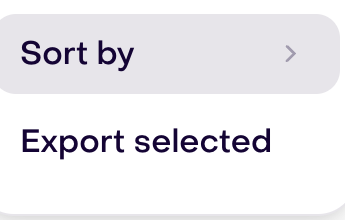
- Select Export to file or Export selected.

After selecting profiles, the same menu offers Export selected:
Hellotext prepares the file in the background and shows its progress in Audience. When it is ready, the download starts automatically and Hellotext also emails a time-limited link to download it. If the automatic download does not start, use the download button in the completed export notification.
Audience offers a cancel option while an export is shown as preparing. If processing has already started, that action may not stop the file in progress. If the export action is not available, ask an administrator to confirm your team role and permissions.
Understand the profile CSV
The file contains one row per exported customer profile. It includes standard profile columns such as the profile ID, profile name, phone number, and email, plus the current business properties available for export. This can include custom properties, address, tags, and list membership. A Mercado Libre username is included when it is available.
The columns reflect the property definitions configured for the business, so a column can be blank for customers who do not have that value. The export contains one phone-number column and one email column; it is not a complete dump of every identifier attached to a profile.
The profile CSV represents current profile values and list membership. It does not include the customer’s full activity or event history, message history, or every report metric.
Use a list or segment to define the audience
Create or open the narrowest useful audience before exporting:
- Use a list for a maintained group whose membership is managed directly or through an import, integration, capture, or journey step.
- Use a segment when membership should be calculated from profile data, subscription status, or tracked activity.
- Select individual profiles when you need an exception or a small operational set.
- Use All profiles only when the destination genuinely needs the complete audience.
Review the audience count and a sample of its profiles before creating the export. Segment membership is queried while the export is prepared and may change after you review the count. Check the generated result: the CSV is a fixed snapshot once it has been prepared.
Prepare the CSV for BI or CRM
Before importing the file into another system:
- Keep Profile ID as the stable Hellotext reference.
- Map phone, email, and unique custom identifiers to the corresponding destination fields.
- Confirm date, number, money, checkbox, and tag formats before changing them.
- Record the source audience and export date so the dataset can be reproduced or audited.
- Decide how the destination should handle blank values and existing records before importing.
For recurring updates, event-level data, or an automated integration, use the API reference instead of treating repeated CSV exports as a live sync.
Prepare an audience for retargeting
Export the list or segment that represents the intended audience instead of exporting every profile and filtering it later.
Before uploading it to an advertising or messaging platform:
- Confirm that the audience criteria still match the campaign purpose.
- Verify the customer’s subscription and consent status for the intended channel and destination.
- Use the identifiers required by the destination and avoid uploading unrelated properties.
- Follow the destination platform’s audience, privacy, and data-retention policies.
Exporting a profile does not subscribe the customer, grant consent, or make the customer eligible for every type of communication.
Export attributed revenue
- Go to Dashboard and open the Revenue report.
- Select the reporting date range you want to review.
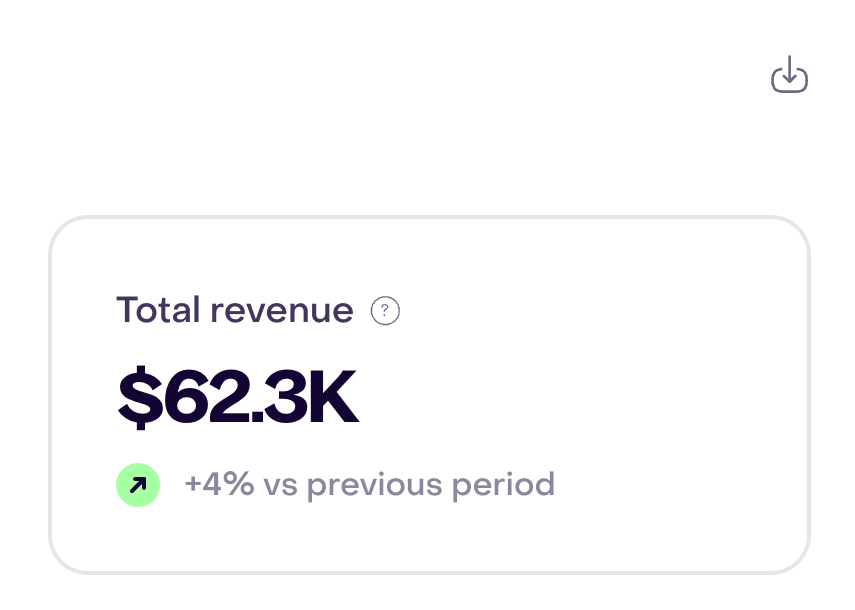
- Select the download icon beside the date-range controls.
- Wait while Hellotext prepares the CSV. The download starts automatically when it is ready, and Hellotext also emails a time-limited link to retrieve it.
In the report, Custom identifies the selected date range:

The download icon sits to the right of those controls, above the populated report:
The Revenue export is designed for reviewing attributed sales. Depending on the available evidence, it can include the order and customer, credited campaign, route, or playbook, source and channel, attributed amount, attribution reason, AI and human commercial evidence, and a link to the attribution event or relevant conversation context.
This export contains attributed sales for the chosen period. It is not a complete export of all store orders or all business revenue. See Sales attribution to understand the evidence and windows behind those rows.
Handle exported files safely
CSV files can contain personal data and business-specific properties.
- Limit the export to the records needed, and before transferring the CSV, remove columns the recipient does not need from a controlled copy.
- Store the file in an approved location with limited access.
- Do not send exported customer data through an unsecured channel.
- Delete temporary copies when the analysis or transfer is complete.
- Follow your organization’s retention policy and applicable privacy requirements.
An operational CSV export is not automatically a complete response to a customer’s privacy or data-access request.